Welcome to Zuora Labs
Zuora Labs is the environment where developers can get an early look of the latest Zuora platform features such as Custom Data Models and Data Query APIs. Try out these early features and give us feedback on the Zuora Labs community group to help shape the future direction of the platform!
With this initial launch, you'll be able to play with the:
- Data Model – extend the Zuora data model with your own custom objects and custom fields
- Signals - capture every customer event signal or create your own configurable signal
- Notifications – capture every customer-generated or system-generated event in Zuora and trigger email or callout notifications
- Data Query – perform real time queries using SQL with the unlimited joins between business objects
- Settings API – programmatically manage tenant settings via API
Labs Scenarios
Zuora Labs will also include real customer use cases to demonstrate the power of these latest technologies.
- Gamer Referral – expand your customers with an easy and rewarding customer referral program
- Home Automation – simulate the power of the connected home to create alerts and upgrades
- Fleet Management and Provisioning – extend the Zuora data model to support VIN tracking for auto manufacturers
- Equipment and Shipping – manage the subscription, invoice and shipping of products
In this ‘Getting Started' guide, we will focus on the Vehicle Fleet Management example.
What you'll learn
- How a custom object was created using the new Data Model
- How to track usage charges for a given VIN
- How workflow is used to calculate the usage charge
What you'll need
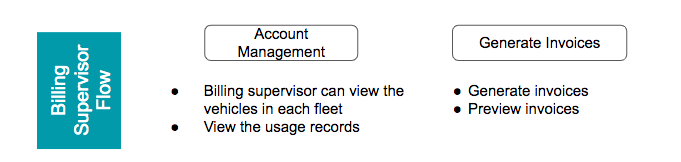
The Vehicle Fleet Management scenario shows how workflows and custom objects can automate the processes in the back end to enable a smoother subscription management for the business. We've set up Zuora Labs with custom objects and workflows to simulate this experience. This scenario is from a Fleet Management Billing Supervisor's perspective. The billing supervisor uses Zuora to manage:
|
This scenario uses a Zuora custom object to track the VIN of the vehicle with its associated Fleet Owner. Each fleet owner will have an inventory of vehicles with varying number services purchased and usage charges. This simulation will include usage charges for SiriusXM, Vehicle Tracker and Navigation.
|
Let's now take a look at how Workflow can automate the processes in the back end to enable a smoother subscription management for the business. We've set up Zuora Labs with custom objects and workflows to simulate this experience. |

Zuora Labs
Zuora Labs has predefined custom object, workflow, products and usage charges to simulate the Vehicle Fleet Management scenario.
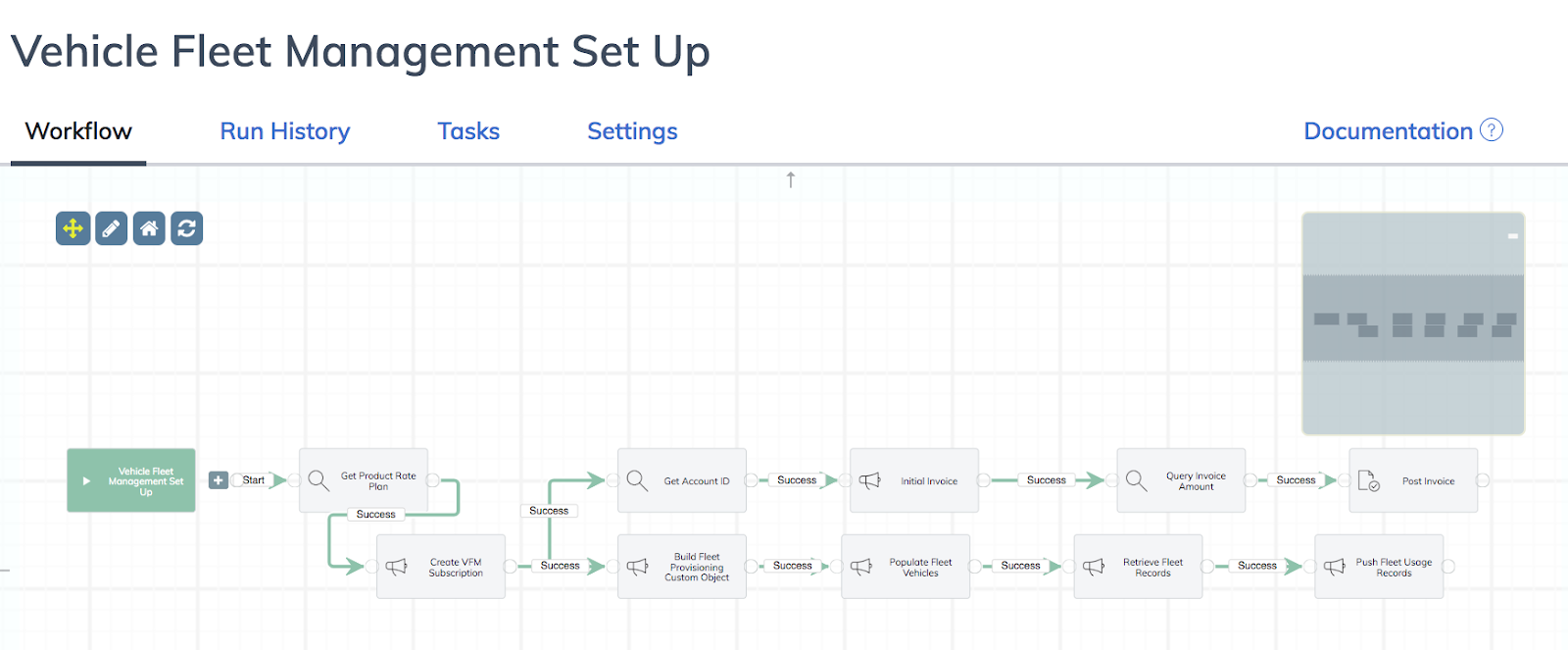
The image below shows how the customer's experience and the business tasks can be automated using the Workflow app.
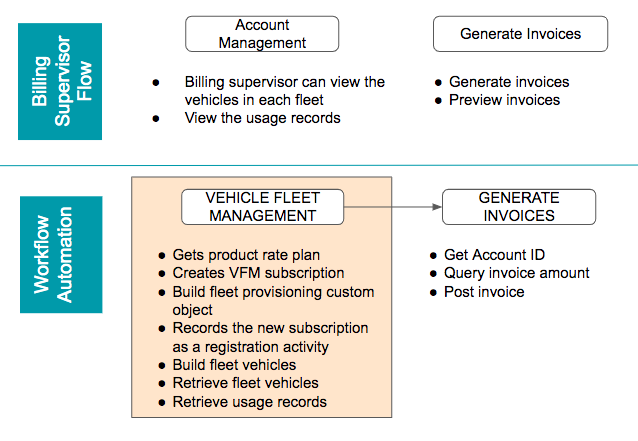
Now, let's see how this workflow is set up in Zuora.
Custom ObjectsNavigate to the left-hand menu and click the Data Models menu item to view the custom objects.
| |
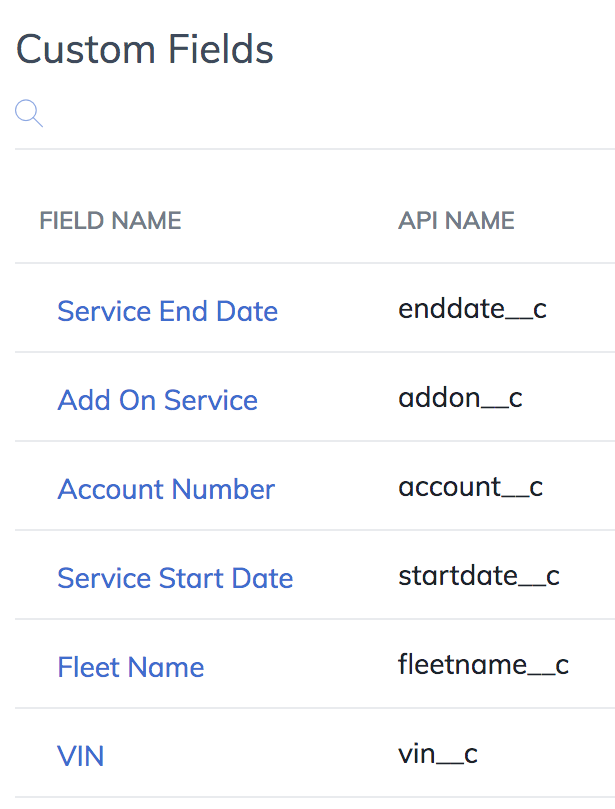
Custom Object ‘fleetprovisioning_#' has the following fields:
(Note: The # on the fleet provisioning table will increment each time the workflow is run). Also this workflow includes a task to create a new custom object each time. While you wouldn't do this often in reality, this does provide an example of how to build a simple custom object using our API. In reality you'll want to leverage other custom object features such as multiple data types, cross referenced objects and much more.
| |
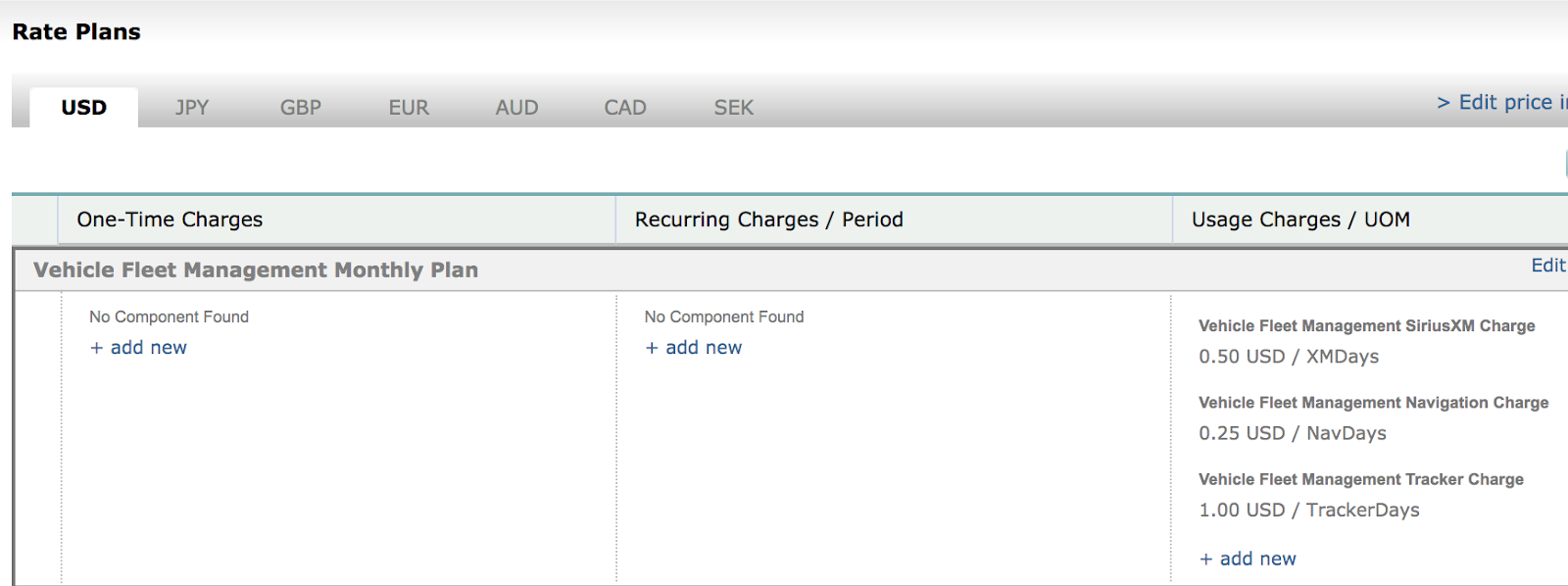
Product Rate Plans and Usage ChargesProduct, Product Rate Plan and Usage Charges for "Fleet Management" have been defined. You can view this product, CloudStream Vehicle Fleet Management, in the Product Catalog.
Usage charges for
| |
WorkflowsNext, let's see a list of Workflows to choose from.
| |
Zuora Labs has a pre-defined ‘Vehicle Fleet Management Set Up' workflow that can simulate the tasks in this scenario. |

Let's now execute the workflows and walk through the simulation.
The workflow called ‘Vehicle Fleet Management Set Up' completes the following tasks:
- Creates and populates the custom object ‘fleetprovisioning_#'
- Creates a Customer Account and Subscription
- Uploads usage (Note: The # in the custom object will change each time you run the workflow.)
- Determines the number of days in May 2019 that the service has been enabled. A usage record gets created for the total number of vehicle days ‘consumed' in May. For example, if the Tracker service was enabled on May 10th, that's 22 days of service in May. This would result in a usage record of 22 days of Tracker for Avised is created. If service started in a prior month, the workflow will create a usage record for Tracker for every day in May, so 31 days of service.
After executing the workflow (by clicking the play button), you can view the new subscription that gets created as well as generate an invoice to preview charges for feet owners.
View the Subscription
You can view the new account by going to Customer Accounts, and look for the recently created billing account with the name beginning ‘Advised' (followed by a number).
You can compare the VINs between the custom object ‘fleet_provisioning' and its associated usage records.
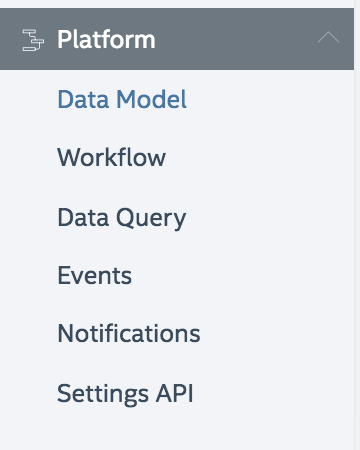
Use the Data Model, under Platform, to view the records in the custom object, fleet_provisioning.
Generate the Invoice
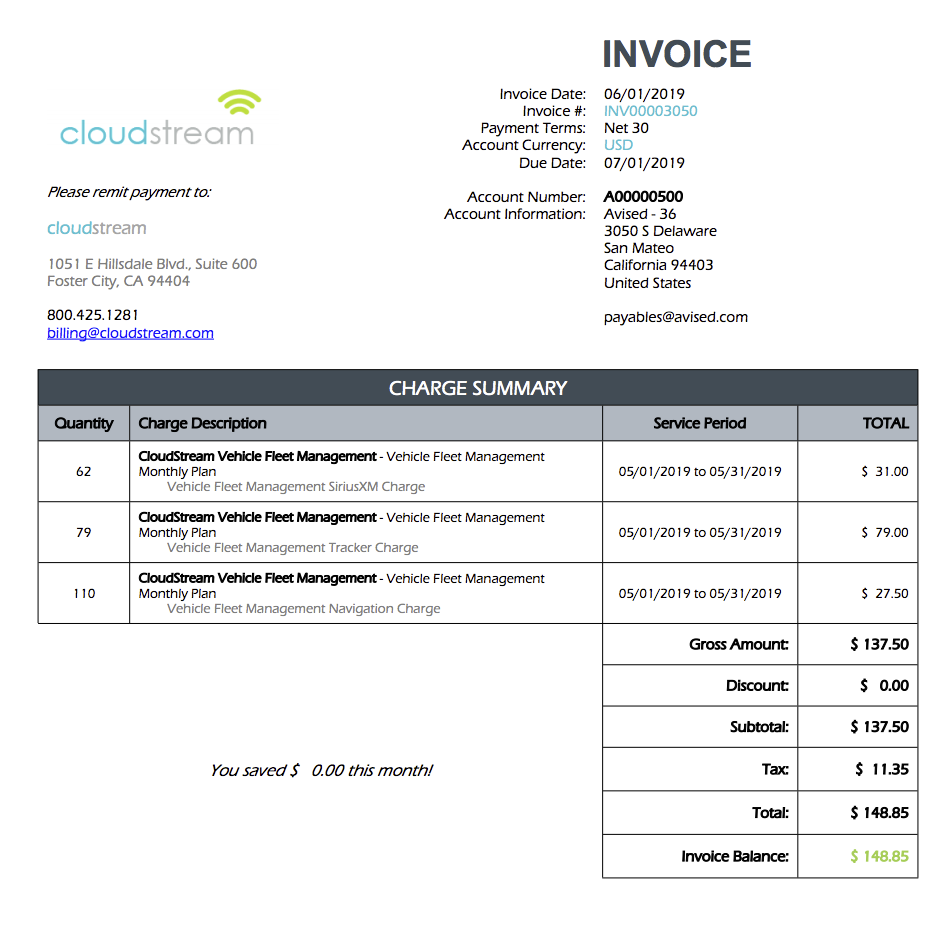
You are now ready to do a bill run and generate the new invoice. Click on ‘Customers', ‘Customer Accounts', look for a customer name beginning, ‘Avised - #', where ‘#' is a number like ‘2', click on the account name, scroll down to the ‘Transactions' panel, click on the ‘Invoices' tab and select ‘create bill run'. You can let all the values default, just change the last two fields to ‘06/01/2019' and click on ‘create bill run'. After a minute the bill run will have completed and you should be able to find a new invoice with all the May usage, like this one.Take a look!
The task that generates the usage records, ‘Gen Usage Records' (bottom right task), contains a significant chunk of Liquid code that you can review in the ‘Body' tab of the task. Click on the little pen icon on the task to bring up the task details. In this scenario Liquid is generating content for the payload of the REST action/create call. Each record in the custom table, fleetprovisioning_#, is iterated through and values for the standard usage fields such as account number, UOM, start date and quantity are determined based on the values found in the fleetprovisioning_# record.
In Liquid {% ... %} statements are basically code, anything in double curly braces, {{ v_uom }} is an instruction to display the variable contents, v_uom being the variable in this example. The last few lines of this Body, starting at line 62, actually render the JSON payload for the usage record. You will see that:
- The account number is simply copied from the account__c field.
- The UOM is determined from a simple lookup, look for the {% case %} statement starting at line 54.
- The StartDate for the usage record is always the last day of the previous month, so likely May 31st 2019. But it takes the first 30 lines of Liquid to figure out what that date should be accounting for leap years and if it's January.
- The quantity is determined by lines 32 to 52. Here we look to see if the service start date is before last month, and if it is just record all the days in the month as the quantity. If the service started during the last month then do the arithmetic to calculate the number of days in service during that month. If a service start date is found in the future, then it's basically ignored by setting the quantity to zero.
For extra credit you could try modifying the Liquid so future dated service start dates are ignored entirely by NOT generating any usage record at all got that vehicle service. For extra extra extra credit add code to verify that the service end date isn't in the previous month, but if it is, then adjust the quantity to reflect the days in service up until the end date!